Library
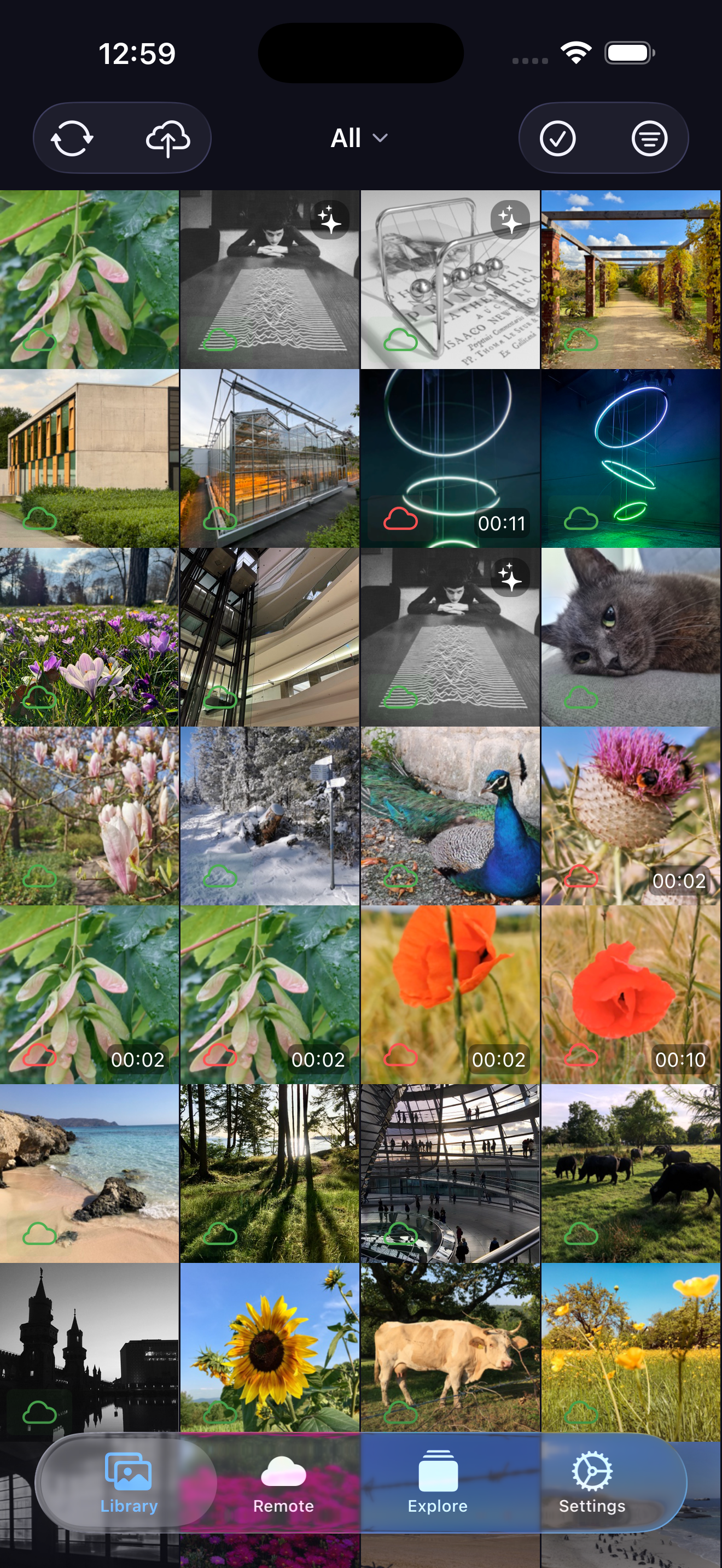
The Library tab shows all photos on your device in a grid view.
Filters
Tap the filter icon (top right) to narrow down what's shown:
| Filter | Options |
|---|---|
| Media | All · Photos · Videos |
| Sync | All · Synced · Pending |
| Hash | All · Hashed · Unhashed |
Tap Reset filters to clear all active filters.
Selection Mode
Long press any photo (or tap the checkmark icon) to enter selection mode:
- Tap photos to select/deselect them
- Tap the grid icon to select all pending photos at once
- Tap Upload (N) to sync only the selected photos
- Tap the X icon to exit selection mode
Syncing Photos
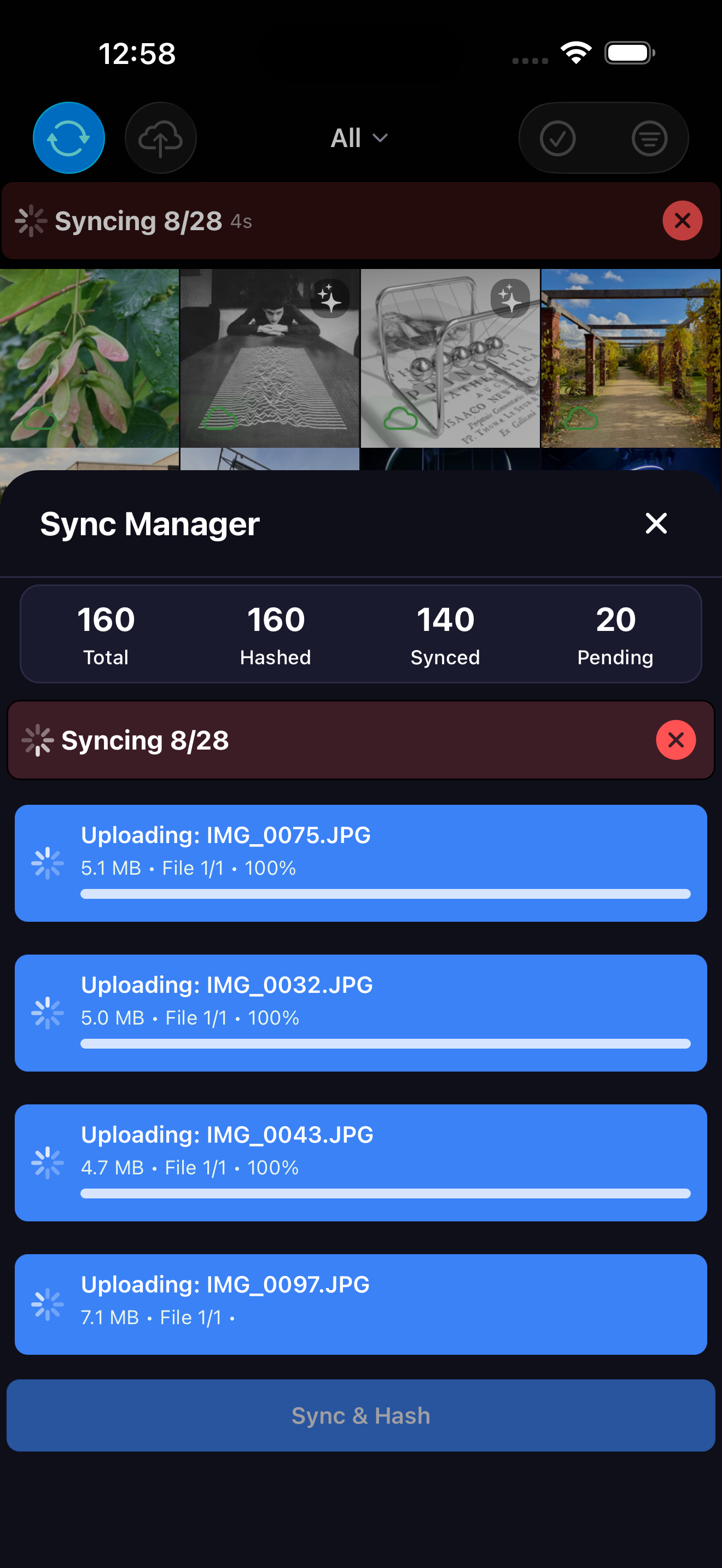
Tap the top left icon to open the Sync panel. It shows:
- Total — all photos loaded
- Hashed — photos with SHA1 computed (used for deduplication)
- Synced — already on your PhotoPrism server
- Pending — not yet uploaded
From this panel you can start hashing (computes SHA1 for all local photos and checks the server for duplicates) or cancel an ongoing operation.
To upload, tap the cloud icon — this uploads all pending photos via WebDAV.
tip
Use WiFi when syncing large libraries to avoid mobile data usage.
Photo Badges
Each tile shows small indicators:
- Sync badge — bottom left: shows if the photo is synced or pending
- Video duration — bottom right: shown on video files
- Live photo icon — top right: shown on Live Photos
- GIF icon — top right: shown on animated GIFs